Windows · Step-by-Step
Install CLI Agents on Windows
This guide walks a complete beginner through installing Codex, Claude Code, and (optionally) OpenCode on Windows — from a fresh laptop with no terminal experience, through environment setup, PATH configuration, and first sign-in.
If you already know what a shell is and just want the commands, the cross-platform overview lives at Getting Started with AI CLI Agents. This page is the slower, hand-held version aimed at Windows-only readers who would rather not guess what to do when a command fails.
Overview
Most command-line AI tools assume macOS or Linux. Windows works differently, so getting these tools running takes more effort — and that gap isn't shrinking anytime soon.
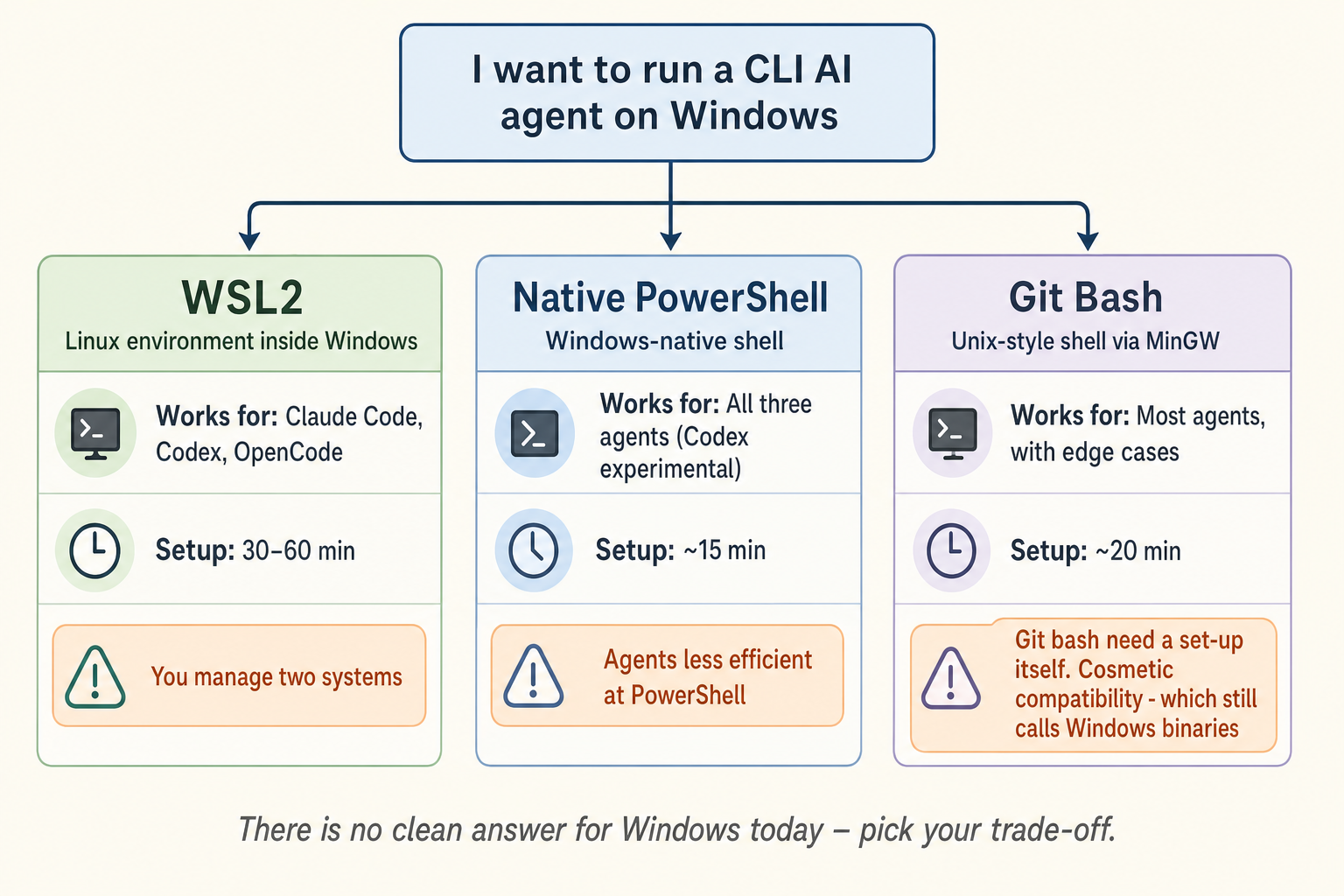
Most people won't switch operating systems over this. So this page assumes you want to run CLI agents on the Windows machine you already have, and gives you three paths:
- WSL2 — a lightweight Linux environment inside Windows. Closest to the ideal setup; every agent runs cleanly. Initial setup is 30–60 minutes; the best long-term answer — at the cost of managing two systems (Windows plus the Linux inside it) from then on.
- Native PowerShell — Windows' built-in shell. Claude Code, Codex, OpenCode, and Gemini CLI can all be installed here today (Codex only added native Windows support in May 2026, still experimental; OpenCode works but its docs still recommend WSL). The upside: seamless integration with Windows files and apps. The cost: agents are less efficient at PowerShell — more tokens burned per command, less consistent answers.
- Git Bash — the Unix-style shell that comes with Git for Windows. It looks like it gives agents the Linux syntax they're trained on, but agents still call Windows-native binaries underneath; Git Bash only swaps the shell layer, not binary behavior. The compatibility gain is mostly cosmetic — path escaping, symlinks, and quoting still bite. A middle ground: smoother than PowerShell, more constrained than WSL2.
To summarize: there is no clean answer for Windows today. You're choosing between "painful setup, runs cleanly" (WSL2) and "easy setup, agent runs at a discount" (PowerShell / Git Bash). The diagram below maps the trade-offs.
If you'd rather not deal with any of this, the Claude or Codex desktop apps work — and honestly, they're quite good. Claude Desktop: claude.com/download; Codex Desktop: developers.openai.com/codex/app (also on the Microsoft Store). See §9 below for the full take.
Step 1: Install Node & Verify
Node.js bundles npm (the package manager). Installing Node installs npm too — you don't manage them separately.
Go to nodejs.org and install the current LTS (≥22). Accept defaults.
Open a terminal (any will do) and run two commands to verify:
node --version
npm --version
Both should print a version number (e.g. v22.13.0 and 10.9.2). The image below shows what success looks like.
If npm --version reports 'npm' is not recognized or command not found, skip to §1.2 PATH — this is the step the Windows Node installer sometimes botches.
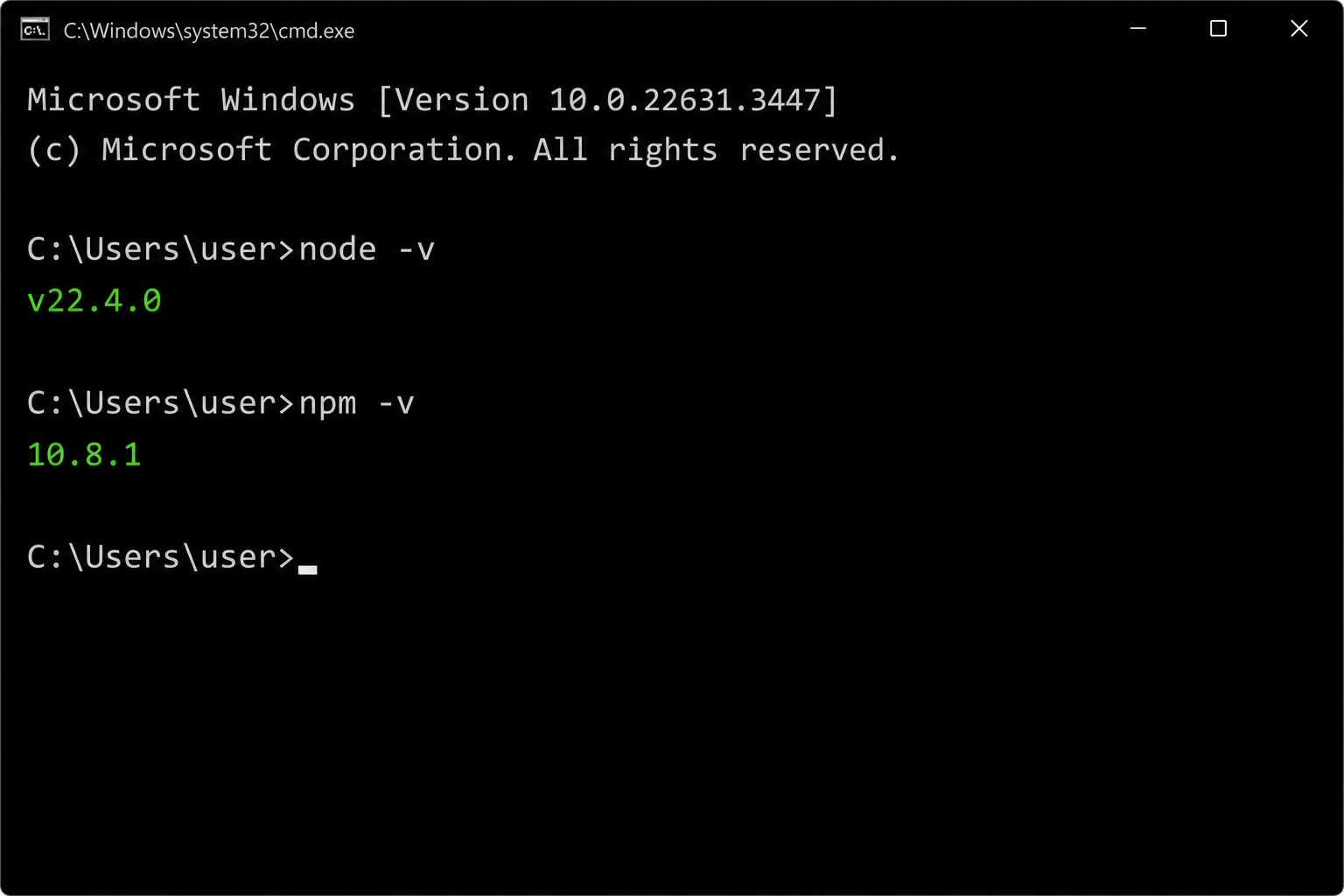
node --version and npm --version should print versions in your terminal — that's success.Step 2: Set Up Terminal, Git Bash & PATH
Windows Terminal app (strongly recommended for your window-management)
- Win 11 has it preinstalled — Start menu, search "Terminal"
- Win 10 does not — free download from Microsoft Store (search "Windows Terminal")
- Why: tabs for PowerShell / cmd / WSL / Git Bash inside one window; no app-switching
- It's Microsoft's official tool (since 2019), not third-party
Install Git for Windows (recommended for every Windows user, not just those going Git Bash)
- Download from gitforwindows.org
- The one installer step that matters: when it asks about PATH, pick the middle option — "Git from the command line and also from 3rd-party software". This makes the
gitcommand available in every shell. If you pick the bottom option ("Use Git from Git Bash only"), PowerShell won't find git later and you'll wonder why - Other options: defaults are fine (MinTTY, Git Credential Manager, Checkout Windows-style / commit Unix-style line endings — keep them all)
- One more installer checkbox worth ticking: "Add a Git Bash Profile to Windows Terminal" (only shown if Windows Terminal is already installed) — this auto-registers Git Bash in the Windows Terminal dropdown, so you don't have to edit
settings.jsonby hand. If you missed it during install, go to Add/Remove Programs → Modify → tick it and reinstall - Side benefit: Claude Code prefers its Bash tool and silently downgrades to PowerShell if Git for Windows is missing — so installing it improves Claude Code's behavior even if you don't use Git Bash as your daily shell
Configure PATH (many people hit this)
The Node.js installer tries to add the npm global path %APPDATA%\npm to your PATH. This doesn't always succeed — especially when switching Node versions, using nvm-windows, or when the AppData\Roaming\npm folder simply wasn't created.
Symptom: after installing any agent (e.g. npm i -g @anthropic-ai/claude-code), running claude or codex reports 'claude' is not recognized as an internal or external command.
Fix: open Windows' Environment Variables editor and manually add %APPDATA%\npm to your User Path. The image below shows where to click and what to add. Note: after editing PATH you must open a NEW terminal window — the old one still has the old PATH.
The truth about the Git installer's three PATH options
The Git for Windows installer's PATH page presents three radio options. Which one to pick depends on whether you want to call Unix tools from PowerShell:
- Use Git from Git Bash only (narrowest) — adds nothing to system PATH.
gitworks only inside the Git Bash window. Don't pick this — PowerShell can't find git later and you'll wonder why. - Git from the command line and also from 3rd-party software (default / recommended) — adds
C:\Program Files\Git\cmdto PATH.gitworks in every shell, but Git Bash's bundled Unix tools (bash,grep,sed,awk) are only available inside the Git Bash window. 99% of users want this option. - Use Git and optional Unix tools from the Command Prompt (widest) — adds both
Git\cmdandGit\binto PATH, so you can callbash,grep,seddirectly from PowerShell. Catch: Windows' built-insortandfindget shadowed by the Unix versions — they have different syntax, so your PowerShell scripts (or random .bat files) start failing in confusing ways. Only pick this if you actually need Unix commands from PowerShell.
How to choose? Default to option 2. If you later realize "I want to run grep directly from PowerShell," go to Add/Remove Programs, modify the Git for Windows install, and re-pick option 3 — that's cleaner than editing PATH manually.
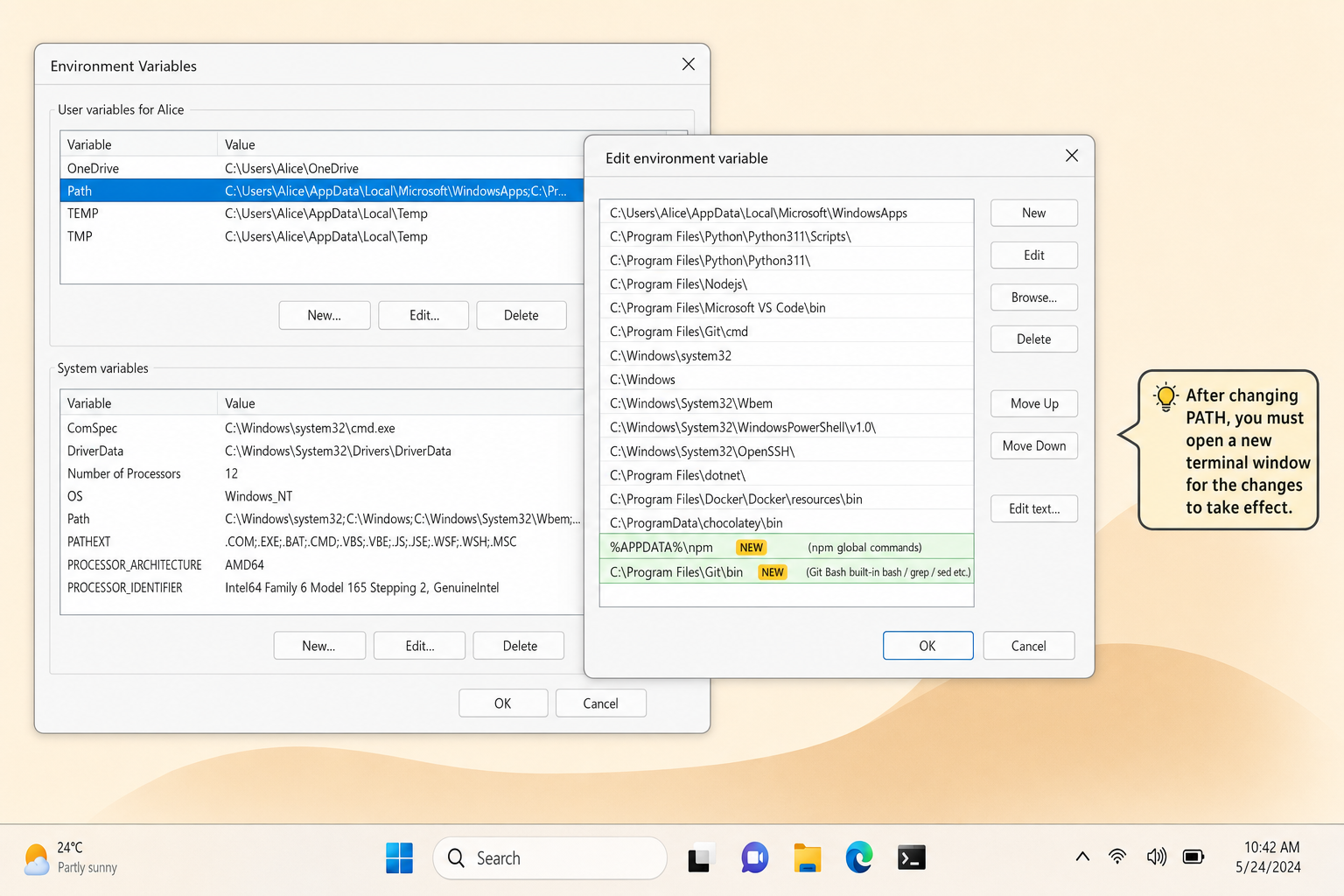
%APPDATA%\npm under the User PATH variable. Remember to open a NEW terminal window for it to take effect.Step 3: Sign In
Free-tier reality (the four agents differ a lot — read before you commit):
- Claude Code — Anthropic account (claude.ai). No free tier. Anthropic briefly experimented with putting Claude Code in Free, then rolled it back — you need Pro ($20/mo) or higher. The 40-messages/day on the Claude.ai web Free tier does not include Claude Code's agentic capabilities. First
claudeinvocation auto-opens the OAuth flow - Codex — OpenAI account (chatgpt.com). For a limited time, ChatGPT Free users can access Codex Mini (capped daily quota); full Codex requires Plus ($20/mo) or higher. Plus/Pro users who sign in via Codex CLI can redeem $5 / $50 in free API credits valid for 30 days
- OpenCode — the tool itself is fully open-source and free, BYOK model (bring your own LLM key). Use an existing Anthropic / OpenAI / Google key, or subscribe to OpenCode Go ($5 first month, $10/month) for budget access to leading open-source models
- Gemini CLI — Google account (OAuth). Free tier: 60 req/min + 1000 req/day — the only one of the four with a no-pay, no-BYOK path. ⚠ Heads-up: as of 2026-06-18 the unpaid tier may be replaced by Antigravity CLI; check geminicli.com when you install
Counterintuitive point: Claude Code is the only one of the four without a free entry point — the opposite of most people's mental model for "Claude." If you want a pure-freebie setup, Gemini CLI is the most generous; OpenCode plus an existing free API key from another provider also works.
Install via Official Docs
Once your environment is ready, the official docs maintain installation commands more accurately than this page can. Three agents, three official install pages:
- Claude Code — code.claude.com/docs/en/setup
- Codex CLI — developers.openai.com/codex/cli
- OpenCode — opencode.ai/docs
- Gemini CLI — geminicli.com/docs (github)
Why don't we list the commands here? These projects move fast — Claude Code released a zero-dependency native installer in a few months; Codex only added native Windows support in May 2026; OpenCode is rolling out winget and MSI packages. A hard-coded command list goes stale quickly.
The sections below cover Windows-specific traps you'll hit during or after install — regardless of which agent you pick or which path you took (WSL2 / PowerShell / Git Bash). When you see an error message, search this page.
§3 Command Not Recognized — %APPDATA%\npm Not on PATH
Symptom — After install, claude or codex reports 'is not recognized as an internal or external command'.
Cause — npm i -g installs to %APPDATA%\npm, but the Node installer failed to add that path to system PATH. Common when switching Node versions, using nvm-windows, or when Roaming\npm wasn't created.
Permanent fix (recommended): add %APPDATA%\npm to your User Path via the Environment Variables GUI, then open a new terminal (old ones keep the old PATH). See image in §1.2.
One-shot (this session only): $env:Path += ';' + $env:APPDATA + '\npm'
Diagnose: Get-Command claude or where.exe claude shows the resolved path; blank output = PATH didn't pick it up.
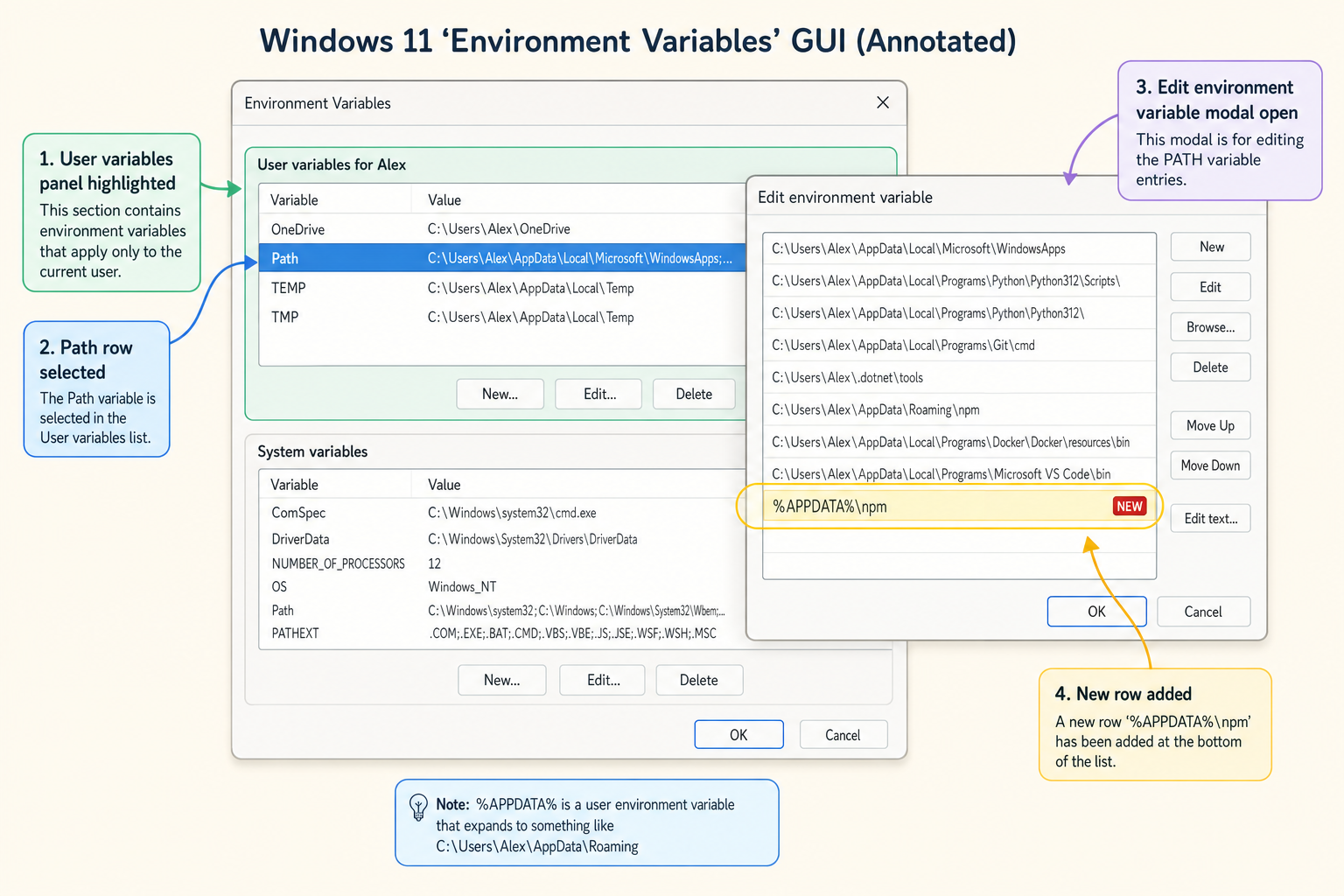
%APPDATA%\npm to the user Path variable; takes effect in a new PowerShell window.§4 First Login — OAuth Callback Blocked by Defender
Symptom — First time running claude or codex, the browser opens an OAuth page and you authorize successfully — but the CLI hangs forever on Waiting for authorization....
Cause — The agent spins up a localhost HTTP server to receive the OAuth callback. Windows Defender pops a "Allow access" firewall prompt on first launch — usually hidden behind the taskbar or reflexively clicked Block. Once blocked, the callback never arrives, and the CLI never unblocks.
Fix:
- Windows Security → Firewall & network protection → Allow an app
- Find
node(or the specific agent binary likeclaude), and check both Private + Public - Re-run the agent's login command
Don't want to fight Defender? Use device flow — the CLI gives you a code, you type it into the browser to authorize, bypassing the localhost callback entirely. Check --help or the official docs for the exact flag (usually called --device, device-code, or --no-browser).
§5 OneDrive Took Over ~/Documents — cwd Inside a Sync Folder
Symptom — files the agent just wrote get pulled away / overwritten by OneDrive a few seconds later, or you see conflict copies with your PC's name appended; the agent complains "the file that was just here is gone."
Cause — Windows redirects ~/Documents to C:\Users\<you>\OneDrive\Documents by default. Any file write there triggers cloud sync. When an agent reads/writes/moves files rapidly, it lands in the middle of OneDrive's sync window and file state goes unstable.
Diagnose — in the agent's cwd, run Get-Location (PowerShell) or pwd (WSL/Git Bash). If the path contains OneDrive, that's your problem.
Fix — move the agent's working directory somewhere OneDrive doesn't touch:
- Recommended:
C:\dev\<project>orD:\code\<project> - WSL2 users: just use WSL's
~/(OneDrive can't see inside WSL)
Don't — run long builds, clone large repos, or npm install inside a OneDrive folder. Hundreds of file events per second will trash your OneDrive sync.
§6 PowerShell Blocks Install Scripts — Execution Policy
Symptom — running a PowerShell install script (typically the irm https://... | iex form) reports:
... cannot be loaded because running scripts is disabled on this system.Cause — Windows PowerShell's default execution policy is Restricted, which blocks any .ps1 or remote script from running. This is Microsoft's default protection.
Fix (recommended, set once):
Set-ExecutionPolicy -Scope CurrentUser -ExecutionPolicy RemoteSignedRemoteSigned= local scripts can run, remote-downloaded scripts must be signed — a sane balance of safety and convenience-Scope CurrentUser= only your account, doesn't touch system-wide policy
Don't do this: Set-ExecutionPolicy -Scope LocalMachine -ExecutionPolicy Unrestricted. System-wide + no signature check is way too open — any double-clicked .ps1, including hostile ones from random downloads, will execute.
One-off bypass (don't want to change the persistent setting): powershell -ExecutionPolicy Bypass -File install.ps1 — releases just this one invocation.
§7 CRLF/LF — sh and Python Scripts Break
Symptom — running a sh script inside WSL or Git Bash reports:
/bin/bash^M: bad interpreter: No such file or directoryor Python scripts (even Makefiles) saved in a Windows editor stop working, with errors containing ^M.
Cause — Windows git defaults to core.autocrlf=true, which converts LF to CRLF on checkout. Linux/macOS interpreters read the trailing \r as part of the filename, so they look for /bin/bash\r instead of /bin/bash — and don't find it.
Fix (pick by situation):
Long-term solution for Windows (recommended):
git config --global core.autocrlf inputMeaning: no conversion on checkout, convert CRLF→LF on commit — the repo stays LF forever.
Repo-level enforcement (more reliable for teams): add .gitattributes at the repo root:
* text=auto eol=lfThen re-checkout once.
One-file emergency: dos2unix file.sh (available in both Git Bash and WSL).
Reverse risk — files the agent writes in WSL, opened and saved by a Windows editor (VSCode, Notepad++), may flip back to CRLF. VSCode's bottom-right status bar lets you switch LF/CRLF — confirm LF before saving.
§8 Cheat Sheet — Four Agents on Windows
| Agent | PowerShell | WSL2 | Free entry | Main trap |
|---|---|---|---|---|
| Claude Code | ✓ | ✓ | ❌ No free (Pro $20/mo+) | %APPDATA%\npm PATH (§3) |
| Codex CLI | ✓ (experimental) | ✓ | Codex Mini (limited free) / full needs Plus $20/mo | OAuth blocked by Defender (§4) |
| OpenCode | ✓ | ✓ (officially recommended) | Tool open-source free, BYOK / OpenCode Go $5 first month | No ARM64 binary |
| Gemini CLI | ✓ | ✓ | 60 req/min + 1000 req/day (Google account) | After 2026-06-18 the free tier may switch to Antigravity |
Two takeaways:
- Pure-freebie path: Gemini CLI is the most generous (no friction, 60/min + 1000/day); OpenCode plus any existing free API key from another provider is the next-best. Claude Code is the only one of the four with no free entry point.
- PowerShell vs WSL2: all four now run on PowerShell, but OpenCode's official docs still recommend WSL (filesystem perf + compatibility). If "install once, hit fewer traps" is the goal, WSL2 is still the safer pick.
§9 Can't Install? Use the Desktop Apps
Honestly: these desktop apps are quite good. Day-to-day chat, writing docs, running code snippets, reading PDFs, pasting screenshots to ask questions — more than enough, and none of the PATH / OAuth / Defender / OneDrive traps apply.
- Claude Desktop — claude.com/download (Anthropic official, Windows + Mac + iOS + Android). Free accounts get 40 messages/day; Pro at $20/mo unlocks everything.
- ChatGPT / Codex Desktop — developers.openai.com/codex/app, or search Microsoft Store for "Codex". ChatGPT Free works for basic use; some features need Plus.
How the desktop apps relate to the CLI: it's the classic product-manager move — the CLI agent is embedded as a feature inside the desktop app. So the desktop app isn't just a chat window; it can also run the agent's autonomous-action workflows (edit files, run tests, commit) — the GUI just wraps the entry point.
Claude Desktop bundles web-style chat with a less-successful "Coworker" experiment in the same window; Codex Desktop is cleaner. If you actually want the agent capability, switch to the "Claude Code" tab / "Codex CLI" tab inside the app — don't let the default chat tab mislead you.
The entry is sometimes buried, and the tab names shift between releases. If you can't find it, ask your instructor.